Operator manual
Agentic Mail Center is an email inbox for external agents. Connect an existing mailbox, then let an agent you run elsewhere use the supported MCP or REST interface. The dashboard is a companion for reading conversations, managing agent access, following drafts, and understanding activity. Select the mailbox you intend to inspect; mailbox views and activity are scoped to that selection.
This guide describes the controls currently available in the workspace. It does not ask you to paste a password, API key, message body, or mailbox address into documentation or support tickets.
Sign in and choose a workspace
Select Open inbox in the public header. If you are signed out or your session has expired, you go directly to the login page. If you are already signed in, the operator workspace opens directly. After signing in, you return to the requested workspace tab or exact draft review.
The header shows the selected mailbox and runtime status. Navigation includes Inbox, Drafts, Mailboxes, Agents, Activity, Developer, Settings, and, when your role allows it, optional Webhooks. On a narrow screen, open Menu to reach the same destinations. Activity shows mailbox work and audit evidence; Developer manages API keys. A tab may be hidden or controls disabled when your role lacks the required capability.
Mailboxes: connect and scope a mailbox
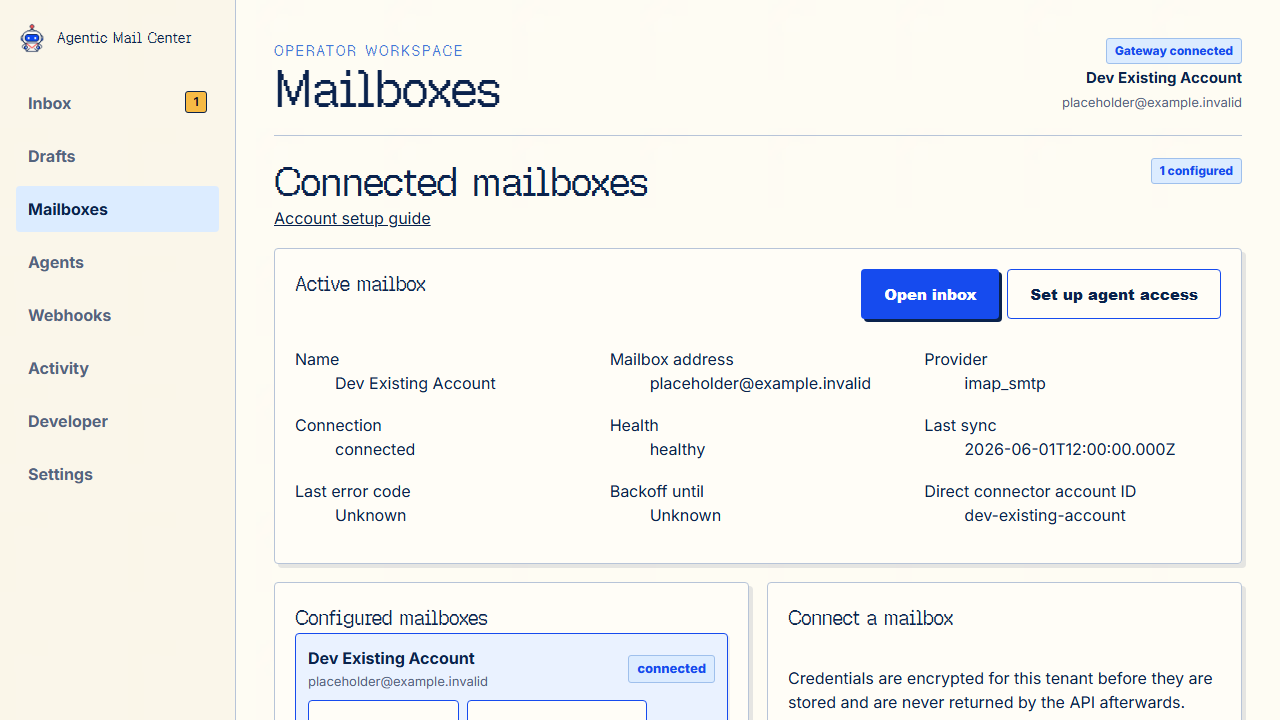
- Open Mailboxes and review the configured mailbox list.
- Select Use Account on the mailbox you want to inspect. The header shows the viewing context and mailbox-scoped data reloads.
- To add a mailbox, complete Connect a mailbox and select Connect mailbox. Credentials are encrypted before storage and are not returned later.
- Use Test Connection to check the selected account. Use Reconnect when the provider connection needs to be re-established.
- To replace credentials, expand Replace stored credentials, enter the complete new set, and select Replace credentials. The account must be tested again afterward.
- To remove access, select Disconnect, then select Confirm disconnect. Stored credentials are destroyed; the account record remains visible for audit continuity.
Direct connector imports use the authoritative connector account ID. In simulation mode, the displayed address and provider fields are test data; connection health still comes from the Gateway. Mailbox connection, import, replacement, reconnect, testing, and disconnect are administrative operations.
Inbox: read conversations and open messages
The Inbox is for reading mailbox conversations. Use Filter threads to search by text, thread ID, date range, label, sender, recipient, or attachment presence. Select Open conversation to load its messages. Received shows when the mailbox received the email, in your browser's local time; an unavailable provider date is shown as unknown. A conversation shows its newest received message date.
Use Sort by to choose Received date, Subject, Sender name, or Sender email, then choose the direction. Sorting applies to the whole result set. Select 25, 50, or 100 conversations per page (50 by default). Previous and Next replace the current page; messages within a long conversation are paged too. Changing filters or sorting returns to page one, and browser Back/Forward restores the prior view. Reload to refresh from page one with the chosen sort and page size when new mail has synchronized. Use View drafts needing review to open Drafts with Needs review selected; the Inbox remains useful without agent setup or drafts.
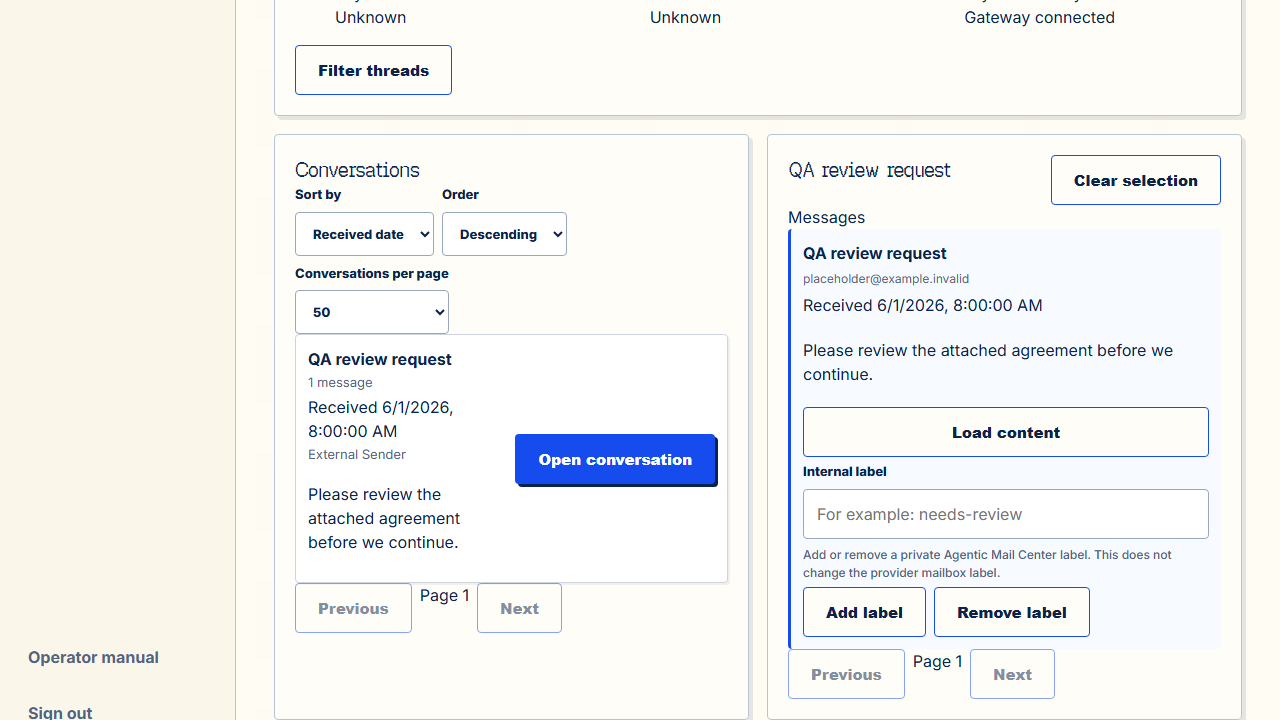
Message content is loaded only when requested. Internal labels are private Agentic Mail Center labels and do not change labels in the provider mailbox. Reviewers can inspect labels; owner, admin, or operator access is required to add or remove them. Keep the active mailbox selected while reviewing. If account data is unavailable, use the visible retry control and confirm the account scope before acting.
Drafts: follow every draft state
Drafts created by external agents remain available through their lifecycle. Choose All, Draft, Needs review, Approved, Rejected, Sent, Failed, or Send status unknown to filter the selected mailbox. Open a row to review that exact draft; the /review/{draft_id} route also opens the requested draft directly and does not fall back to another row.
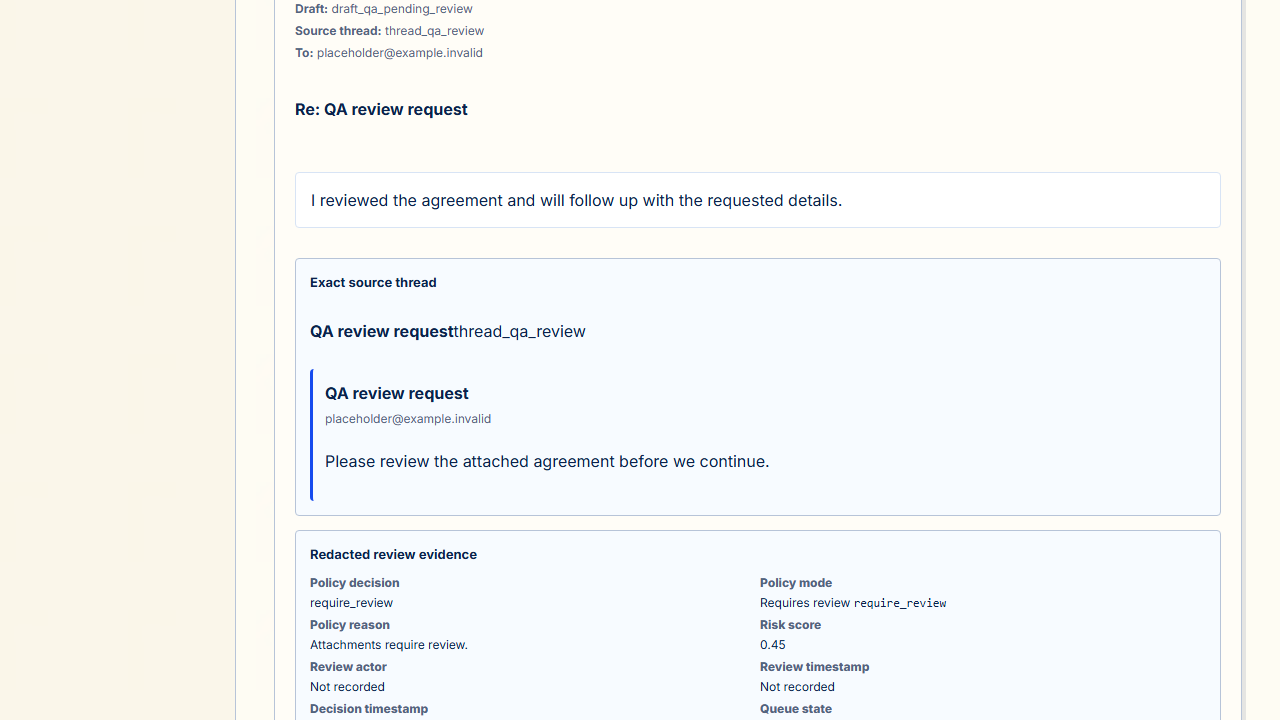
- Read the draft, exact source conversation, and redacted review evidence before deciding.
- Use Check send eligibility (no send) to evaluate current evidence without changing draft state or sending.
- Approve is available only when required source and review evidence is present and the draft is awaiting review.
- Reject requires a reason, which is recorded in the audit log.
- For the
send_with_policyworkflow, sending requires approval, send permission, and passing policy checks. The separatesend_directmode can send a policy-allowed draft before review only when the server'sAMG_DIRECT_SEND_ENABLEDgate is enabled. Rejected drafts remain blocked. The workspace does not reveal server limits that are not available to it.
Submitting, reviewing, approving, and sending are distinct actions. If evidence cannot be loaded, review actions stay unavailable. A send with an unknown outcome must be reconciled before retrying; do not blindly resend it. Use browser back and forward to return through workspace views, and use the exact review URL when sharing a draft target with an authorized operator.
Settings: effective sending rules
The Settings view shows the default outbound policy and its version. Its effective-rules summary explains approval, principal send permission, policy checks, disabled review triggers, and constraints the workspace cannot establish. Turning off an external-recipient or attachment review trigger does not remove approval. A policy-allowed result does not itself approve or send a draft.
Review Safety impact before saving, then select Save policy only when the proposed change is understood. If a newer version is reported, refresh or reconcile before saving. Policy editing is restricted by role; read-only roles can inspect current rules without changing them.
Agents: identity and access
Identity details
An agent identity belongs to the tenant; the selected mailbox is viewing context and does not rebind the identity or its default account. An enabled identity does not show whether an external agent is running. The Agents view reports identity mode and status separately from credential status and last-use evidence. Credential details may be unavailable to your role or partial while additional pages remain.
Use Manage this identity’s access to continue to Developer with the same identity selected. API keys are tenant credentials tied to an identity; scope, expiry, revocation, and last use are credential evidence, not a live-agent heartbeat or proof of use against the selected mailbox.
Activity: mailbox activity and audit evidence
Activity shows events and audit evidence for the selected mailbox. Agents shows time-ordered activity attributable to the selected identity and mailbox separately from draft work. These views use loaded data; more records may exist, and neither is a complete history.
The Audit section records operator and agent actions. The separate Events section contains diagnostic runtime events and is not the audit trail. Filters apply to loaded records. Use refresh or retry when evidence is unavailable; IDs and timestamps refer to a specific tenant and mailbox, not credentials.
Developer: API keys
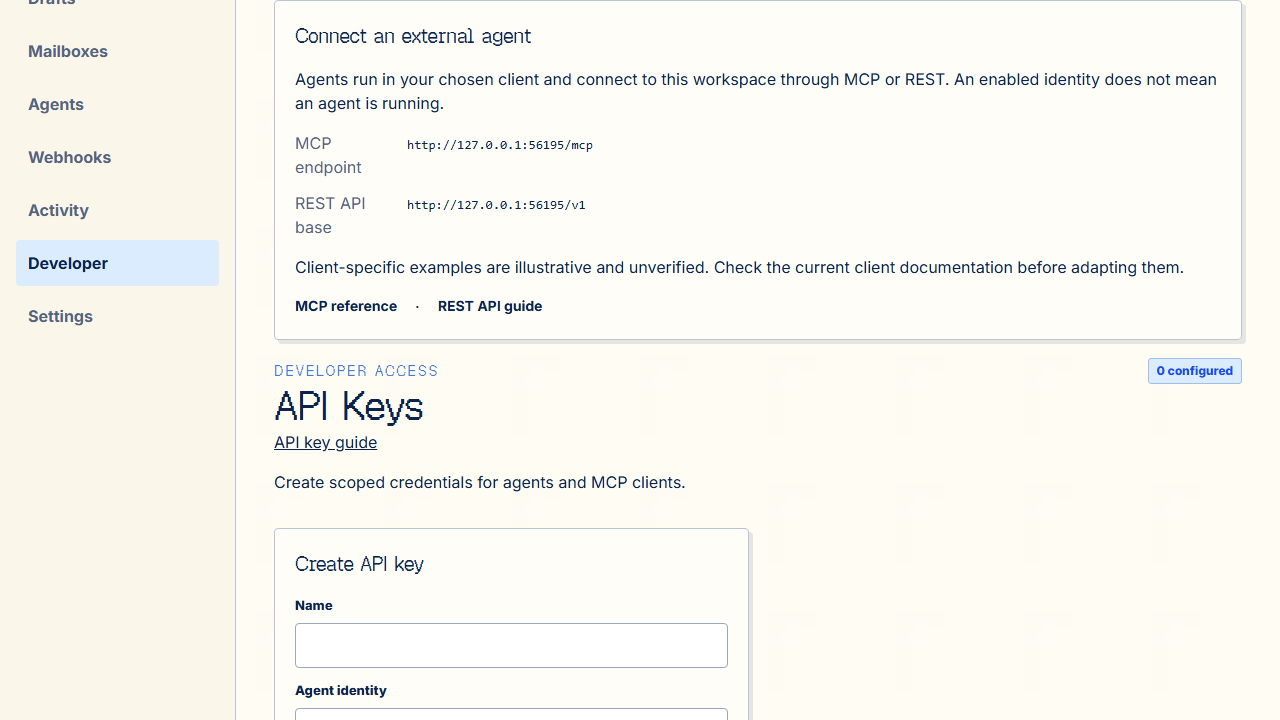
The Developer view exposes API keys only to roles that can manage them. When creating a key, bind it to the intended agent identity, choose the smallest required scope preset, and set an expiration when possible. The plaintext key is shown once; copy it immediately to the approved secret store and never place it in a screenshot, ticket, log, or commit.
Existing rows show public metadata, status, expiration, and last use. Revoking a key requires confirmation and cannot be undone from the workspace. A revoked or expired key should be replaced through the same controlled process, not shared between identities. External agents run in a client you choose; use the separate MCP reference or REST API guide for their supported interfaces.
Connect an agent client
Agents run in a client you choose and connect to the /mcp endpoint with an API key from Developer. Follow the guide for your client: Claude Code, Codex, Hermes Agent, or OpenClaw. Each guide keeps the key in an environment variable or secret store, not in a committed file.
On hosted deployments, MCP gives an agent message details but not the email text. To read the text, the agent calls the message content route with the same key.
Webhooks: optional new-mail notifications
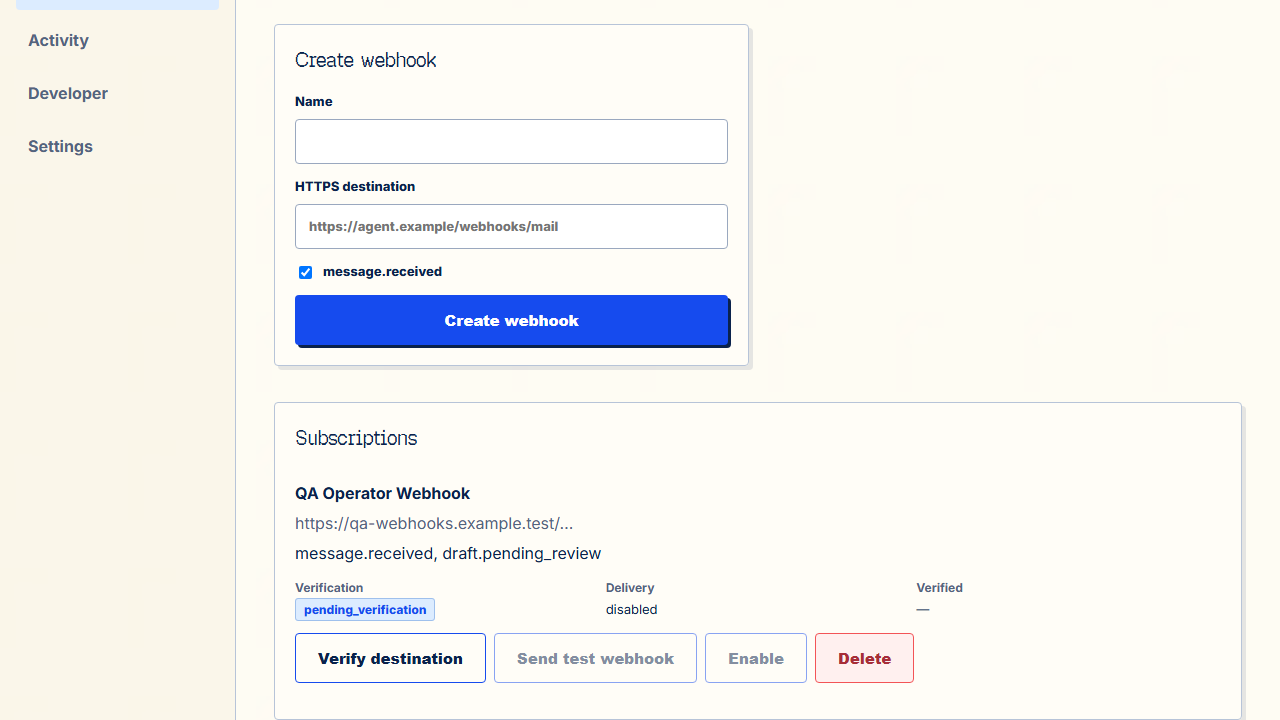
Webhooks are optional notifications for new mail; they are not required to read a mailbox or use MCP/REST. This view is available only to roles that can manage subscriptions. Verify a destination before enabling it. A signing secret is shown once; copy it to the approved secret store and do not publish it.
A webhook is meant for an agent's endpoint. It tells the agent that new mail arrived and which message to look at, and the agent decides what to do next. A webhook is a signal, not a copy of the email:
- New mail arrives and AgenticMailCenter posts a signed
message.receivedevent to your destination. - The agent verifies the
x-agenticmailcenter-signatureheader:sha256=followed by the hex HMAC-SHA256 of<timestamp>.<raw request body>, made with the signing secret and thex-agenticmailcenter-timestampvalue. - The agent reads
event.message_idandevent.thread_id. If it needs the email text, it calls the message content route with its own API key. - The agent acts through its normal access, such as creating a reply draft. Draft review and sending rules still apply.
A message.received request contains event details only: the event ID, type, and time; the account, message, and thread IDs; the provider message ID; and the webhook subscription's own details, including your destination URL. It does not include the subject, sender, recipients, body, HTML, or attachments. This is deliberate: email content stays out of the destination's logs, and each read goes through a key you can revoke and appears in the audit trail. Deliveries can be retried, so use event.id to ignore repeats.
The dashboard creates message.received subscriptions only. Subscriptions created through the API can select other event types, and those details differ: draft.provider_sent, for example, can include sender and recipient addresses.
Send test webhook delivers a request to the configured destination. Use a destination you control for testing. Delivery history shows current status, and dead-lettered deliveries can be requeued with Requeue delivery. Disable a subscription when the destination is no longer trusted or maintained.
Roles and safe operating habits
- Owner, admin, and operator roles can perform operational actions granted by their capability response, including mailbox management where enabled.
- Reviewer roles can inspect workspace data and review drafts, but cannot connect mailboxes or change labels, policies, identities, keys, or webhooks unless a capability explicitly grants it.
- Viewer or other read-only roles can inspect the surfaces granted to them and cannot perform mutations.
Before a consequential action, confirm the active mailbox, read the evidence shown in the workspace, and use the narrowest available permission. A disabled action includes or links to its reason where available; ask an authorized workspace owner when your role does not grant that capability. Do not work around the UI by copying private data or credentials into another system.
Common recovery steps
- Authentication required: sign in again, then reload the operator workspace.
- API unavailable: check the runtime status and retry the affected panel; do not repeat a mutation until its result is known.
- No mailbox data: select the intended account and wait for its scoped data to reload.
- Draft action unavailable: confirm the draft state, source conversation evidence, review evidence, and your role's capability.
- Policy conflict: refresh the current version and review the safety summary before saving.
- Key or signing-secret reveal closed: create or rotate through the controlled panel; secrets are intentionally not recoverable later.